Style with Pico
--css=pico: Pico CSS 2.1.1, a framework that
styles plain HTML, so its components write few classes. No build step
and no JavaScript.
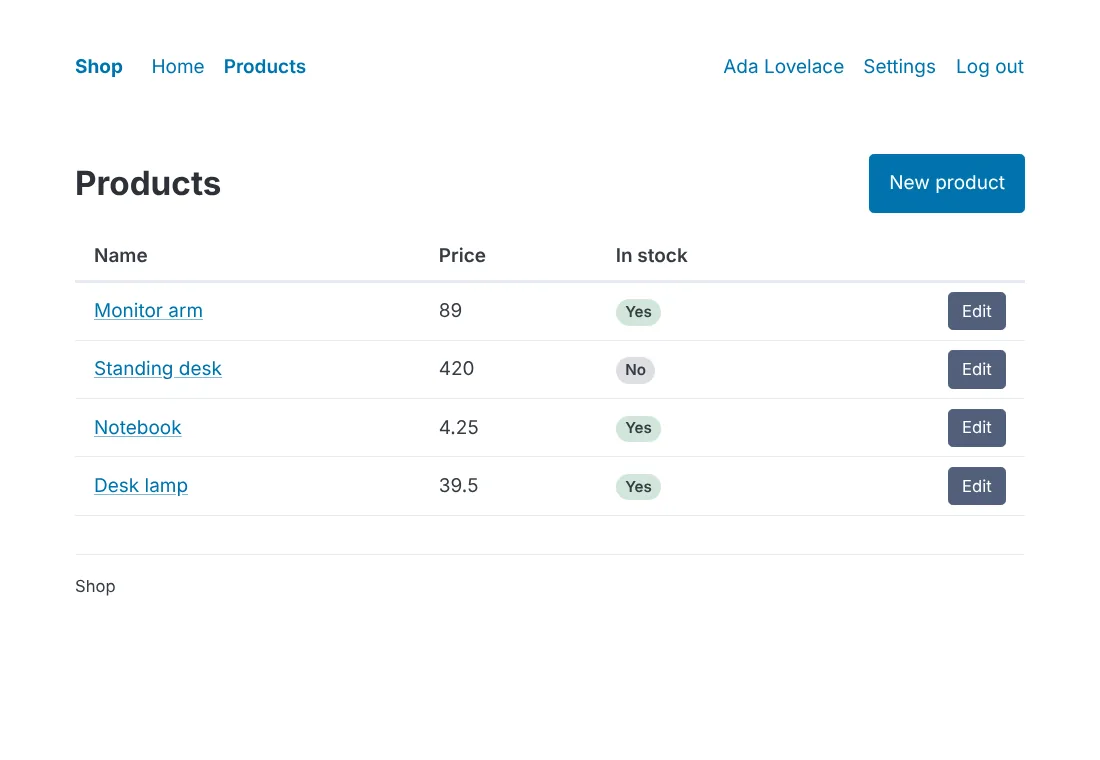
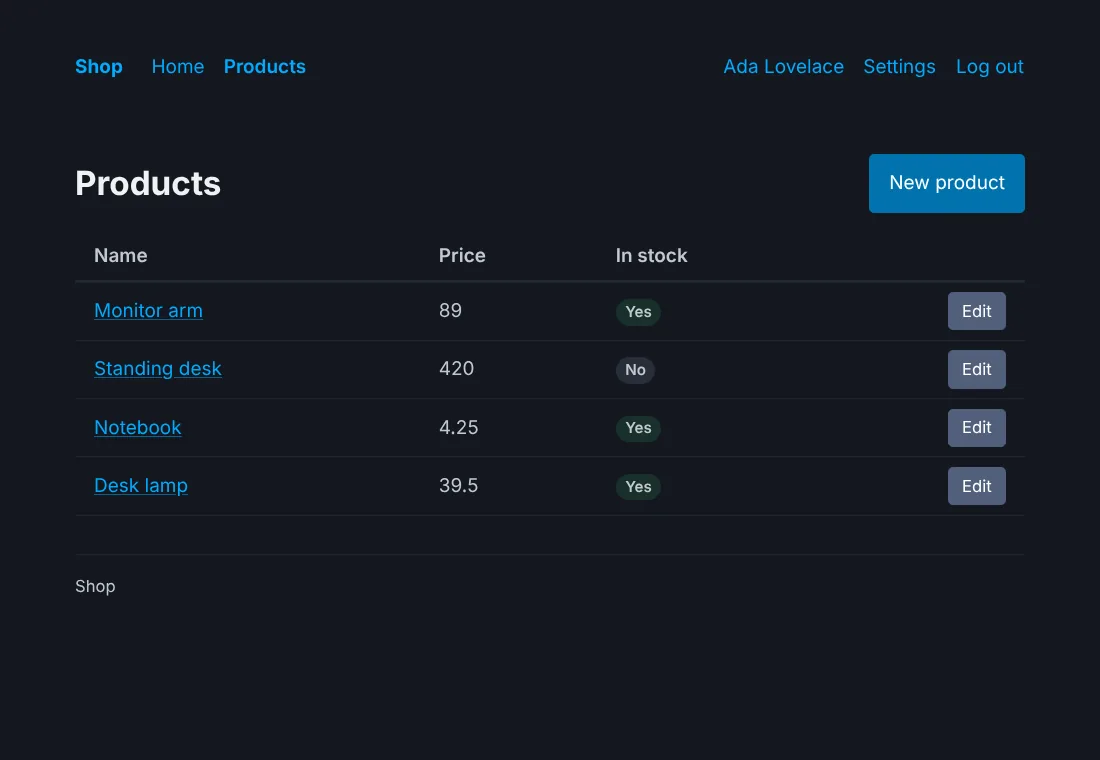
Before you start
A project made with anetos new blog --css=pico, or switched to it
with go tool anetos css:use pico.
Steps
1. Know its files
| File | Holds |
|---|---|
public/static/pico.min.css | Pico as released, with pico.LICENSE.txt (MIT) |
public/static/app.css | What Pico has no style of: the header’s layout, badges, colored messages, the danger, ghost, small and full buttons |
views/ui/*.templ | The components: <article> for a card, <small> for a field’s message and hint, <a role="button"> for a link button |
views/ui/classes.go | The classes of each variant and size (secondary; danger, ghost, small, full from app.css) and tone |
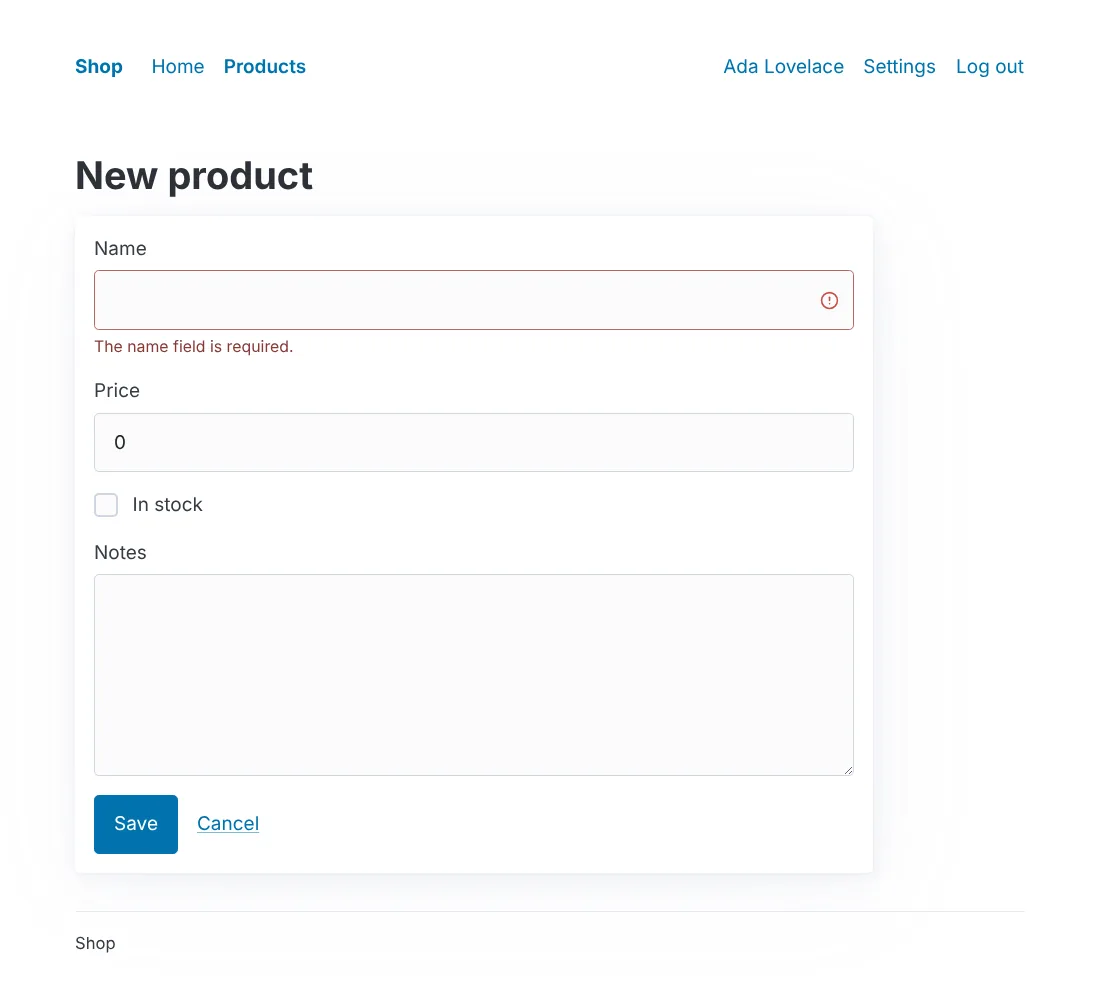
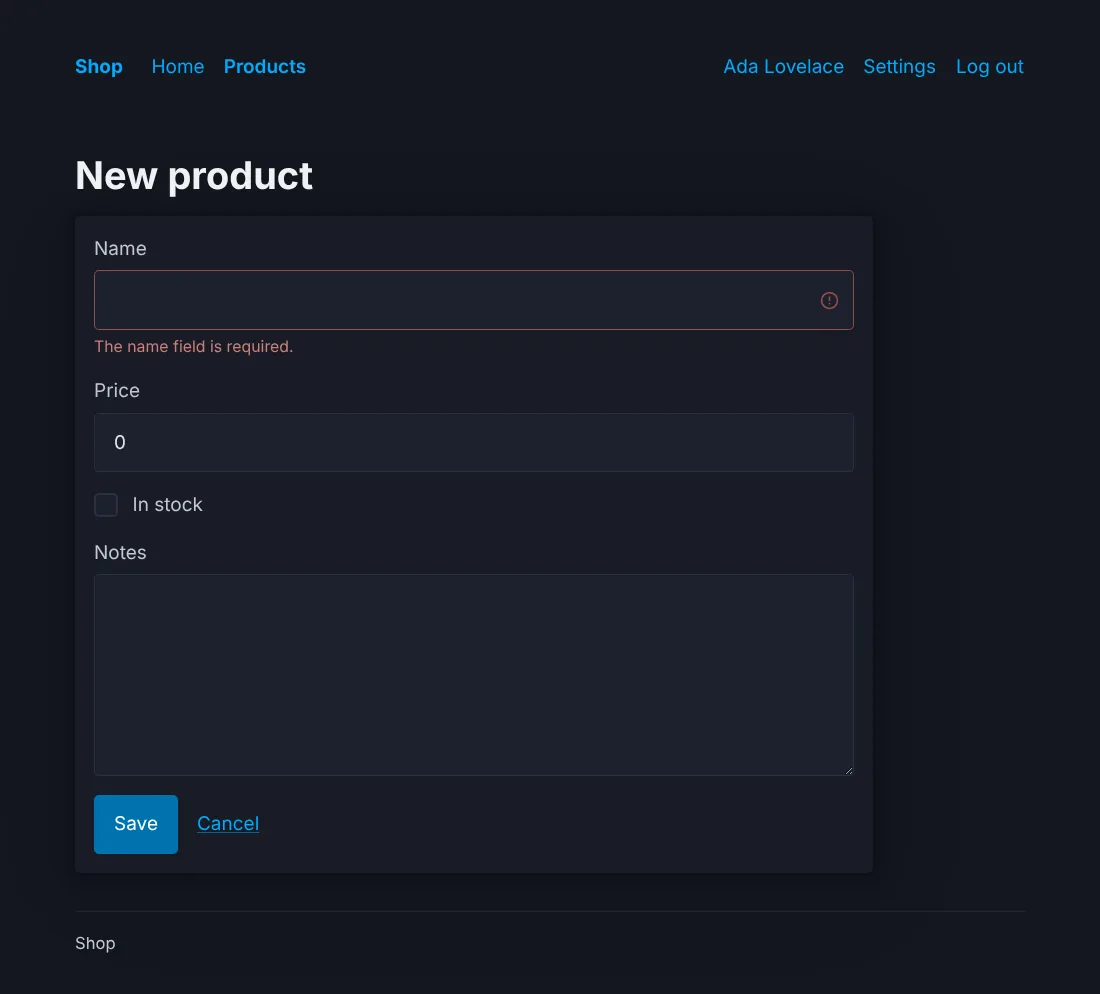
The header’s links wrap on a small screen; there is no menu button. A form with its errors (Pico marks the control and colors its message):
2. Change its colors
Pico’s colors are CSS variables. Set them in app.css, which comes
after pico.min.css, with Pico’s own selectors (a plain :root loses
to them):
/* illustrative */
:root:not([data-theme=dark]), [data-theme=light] {
	--pico-primary: #6d28d9;
	--pico-primary-background: #6d28d9;
	--pico-primary-underline: rgba(109, 40, 217, .5);
	--pico-primary-hover: #5b21b6;
	--pico-primary-hover-background: #5b21b6;
	--pico-primary-focus: rgba(109, 40, 217, .25);
}
@media (prefers-color-scheme: dark) {
	:root:not([data-theme]) {
		--pico-primary: #a78bfa;
		--pico-primary-background: #7c3aed;
		--pico-primary-underline: rgba(167, 139, 250, .5);
		--pico-primary-hover: #c4b5fd;
		--pico-primary-hover-background: #6d28d9;
		--pico-primary-focus: rgba(167, 139, 250, .375);
	}
}
[data-theme=dark] {
	--pico-primary: #a78bfa;
	--pico-primary-background: #7c3aed;
	--pico-primary-underline: rgba(167, 139, 250, .5);
	--pico-primary-hover: #c4b5fd;
	--pico-primary-hover-background: #6d28d9;
	--pico-primary-focus: rgba(167, 139, 250, .375);
}
Pico’s docs list the
others: spacing, radius, font. Pico’s other color themes
(pico.violet.min.css…) are other files of its release: to use one,
put it in public/static/ and link it from ui.Head in
views/ui/shell.templ instead.
3. Use more of Pico
Pico styles HTML by its elements and roles, so your own components can
use them without classes: <div role="group"> for buttons side by
side, <details class="dropdown"> for a menu without JavaScript,
<article> with a <header> for a card, <progress>, <dialog>.
Put them in components of views/ui (Style your
app).
How it works
Dark mode is Pico’s: it follows the visitor’s system, or
data-theme="dark" (or "light") on <html>. css:use pico with the
in a project that has it brings a newer Pico when a newer anetos carries
one (Style your app).
Common problems
| Symptom | Cause | Fix |
|---|---|---|
A variable set on :root changes nothing | Pico sets it with a more specific selector | Use Pico’s selectors, as above |
| A link button doesn’t respond to the space bar | It’s a link (<a role="button">), Pico’s way to style one: links follow on Enter | Use a ui.Button in a form for actions |