Style with Bulma
--css=bulma: Bulma 1.0.4’s classes and its
stylesheet, as released, with a small script for the menu button. No
build step.
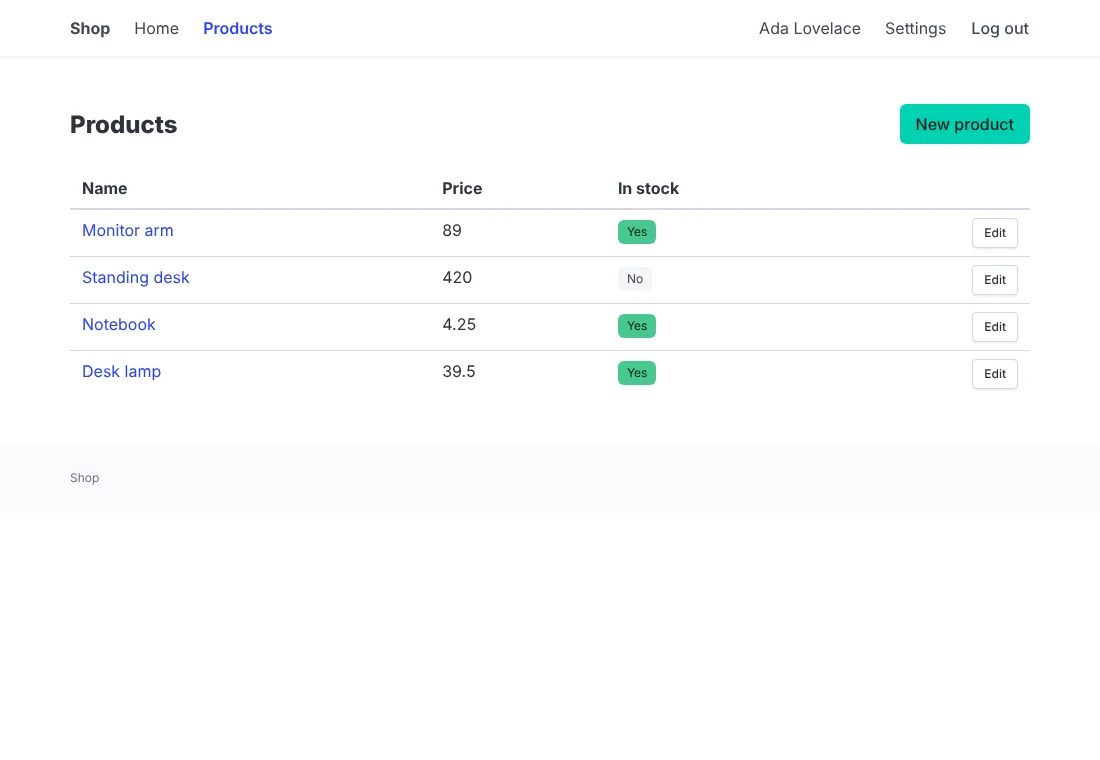
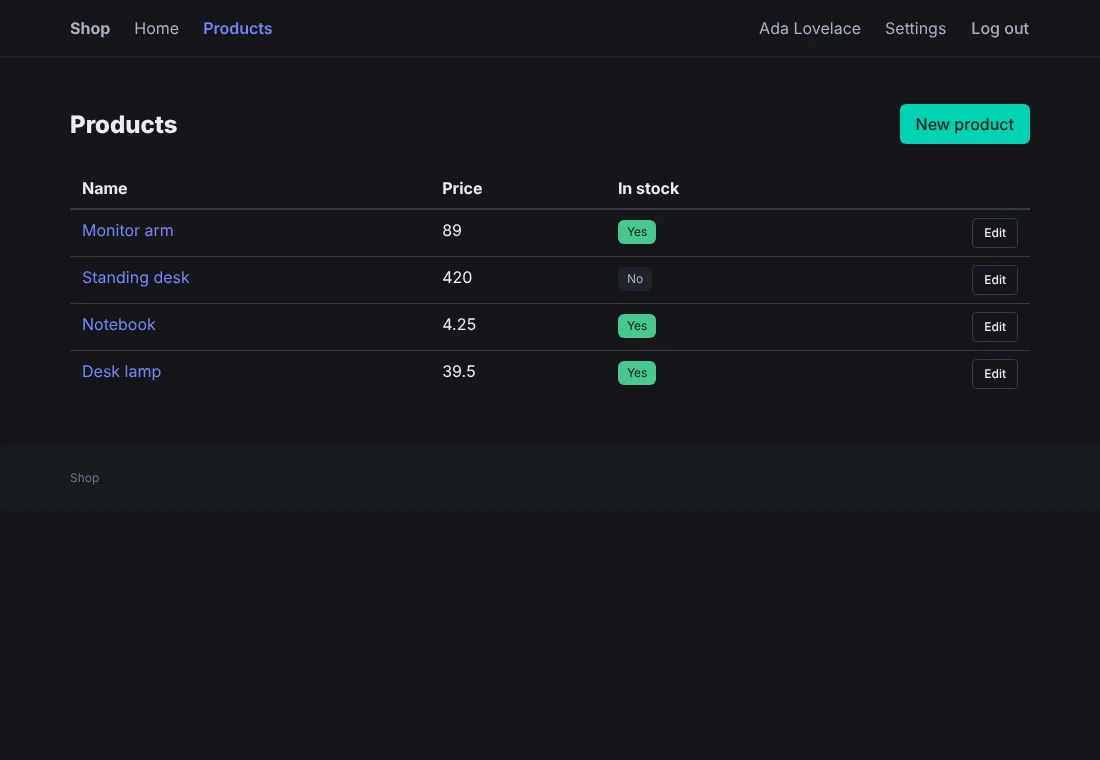
Before you start
A project made with anetos new blog --css=bulma, or switched to it
with go tool anetos css:use bulma.
Steps
1. Know its files
| File | Holds |
|---|---|
public/static/bulma.min.css | Bulma as released, with bulma.LICENSE.txt (MIT) |
public/static/nav.js | Opens and closes the header’s links on a small screen (Bulma has no JavaScript of its own) |
public/static/app.css | The few rules Bulma has no class for (a narrow column, the details’ grid, the current page in the header) |
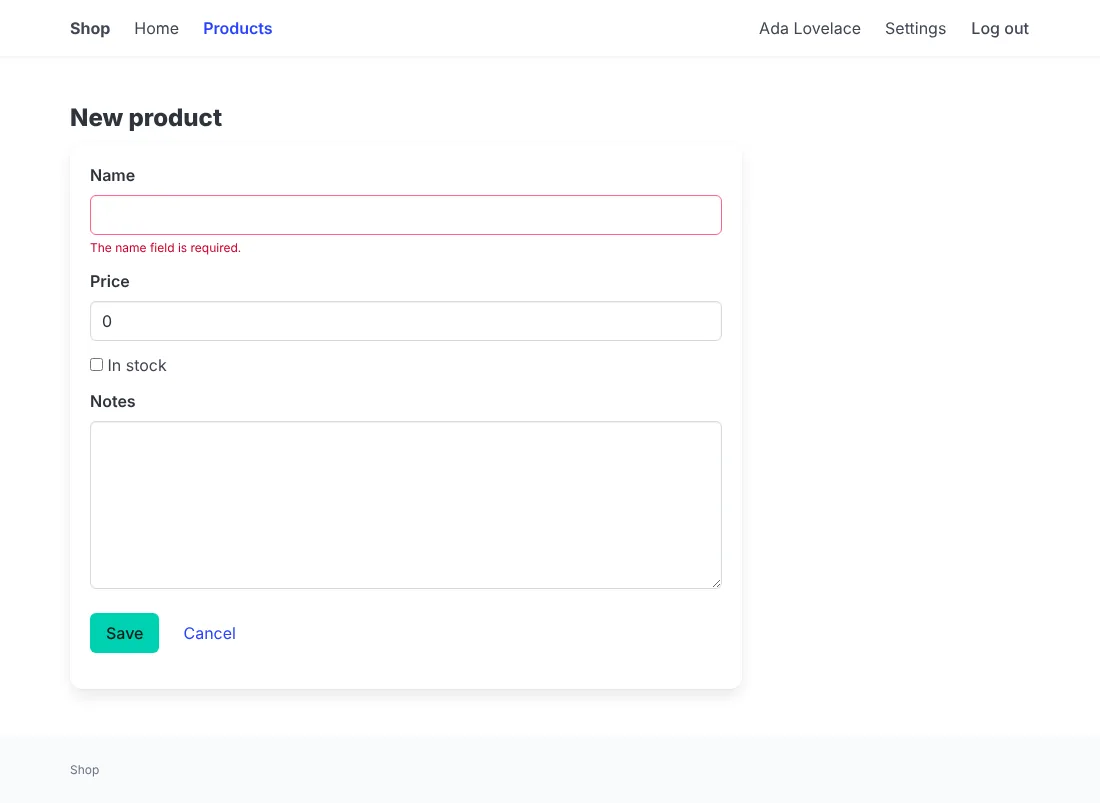
views/ui/*.templ | The components: navbar, box, field and control, notification, tag, pagination…; ui.Main wraps the page in Bulma’s content, which styles the pages’ plain HTML (headings, lists) |
views/ui/classes.go | The classes of each variant and size (button is-primary, is-danger, is-ghost, is-small, is-fullwidth) and tone |
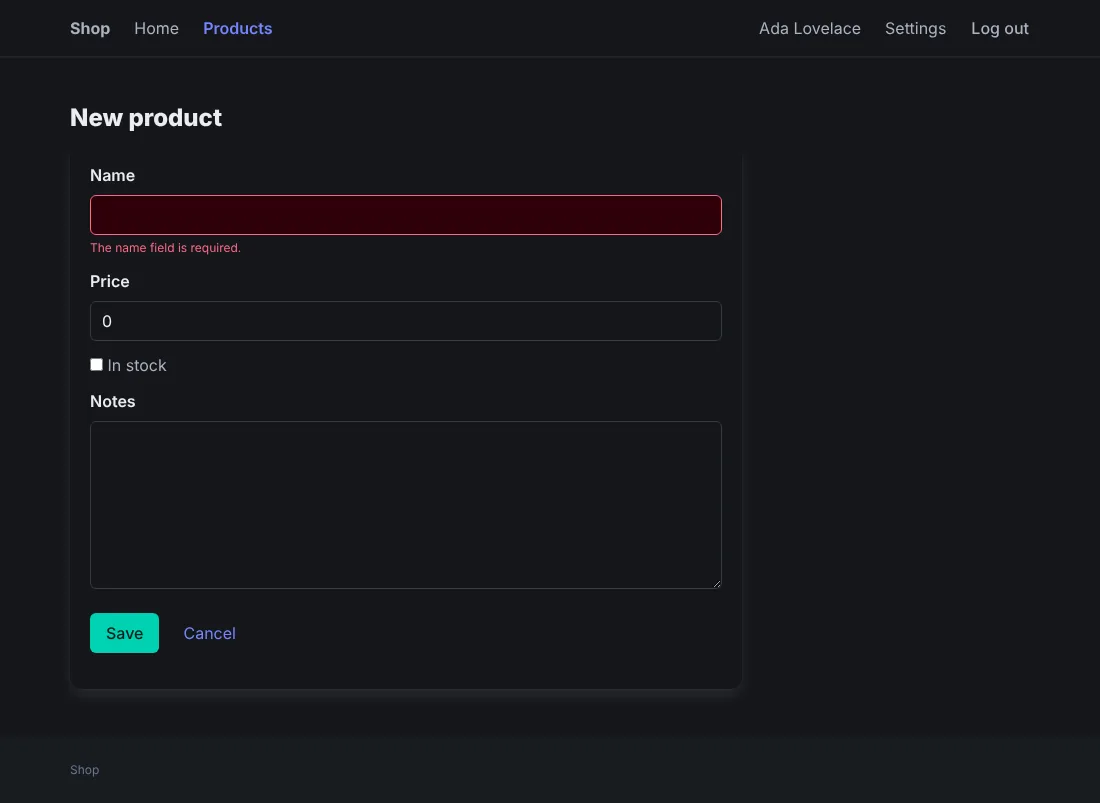
A form with its errors:
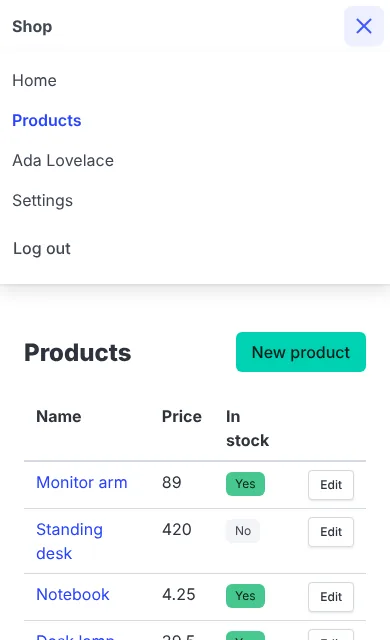
On a small screen, a menu button opens the header’s links. Its name for
screen readers is nav.menu in locales/<locale>/app.yaml (“Menu”):
2. Change its colors
Bulma’s colors are CSS variables in hue, saturation and lightness. Set
them in app.css, which comes after bulma.min.css:
/* illustrative */
:root {
	--bulma-primary-h: 262deg;
	--bulma-primary-s: 83%;
	--bulma-primary-l: 58%;
	--bulma-link-h: 262deg;
	--bulma-link-s: 83%;
	--bulma-link-l: 58%;
}
Bulma derives the hover and the hue of the light and dark variants
from them, but keeps its own lightness for the variants and for the
text on the color: for a dark brand color, set
--bulma-primary-invert-l: 100%; too, for white text. Bulma’s docs
list the others.
3. Use more of Bulma
Its layout (columns, column is-half), elements (tags, level,
media) and components work in your own components and pages. Bulma’s
interactive components (a dropdown, a modal) need a script to open
them, as nav.js does for the menu: add yours to public/static/ and
link it from ui.Head in views/ui/shell.templ. Keep repeated markup
in a component of views/ui (Style your
app).
How it works
Bulma’s dark mode follows the visitor’s system. css:use bulma with
in a project that has it brings a newer Bulma when a newer anetos
carries one (Style your app).
Common problems
| Symptom | Cause | Fix |
|---|---|---|
A page’s own <h1> or list has no style | Outside ui.Main’s content, Bulma resets plain HTML | Put it in the page’s content, or give it Bulma’s classes (title) |
| The menu button does nothing | nav.js isn’t loaded (a ui.Head you changed), or JavaScript is off | Link nav.js from ui.Head; without JavaScript, the links stay hidden on small screens |